Frequency Generator
Online tone generator and frequency sweeps for speakers and headphones. Not a hearing test or SPL meter — start quiet and raise gradually.
Frequency generator
Generate a sine tone from 20 Hz to 20 kHz. Silence can mean speaker limits, settings, ambient noise, or hearing — not a clinical result.
440 Hz
Start at a low volume, especially with headphones and very low or high frequencies. Extreme tones can stress some equipment when played loudly.
Listening safely
Start quietly and increase gradually — especially with headphones. Limit long high-volume sweeps. Extreme low or high tones can stress some drivers when played loudly. Silence at a frequency is not a clinical hearing result; it can be the speaker, settings, ambient noise, or your hearing.
What the presets are for
- 60–100 Hz — low bass region; often weak on small laptop speakers.
- 250 Hz — upper bass / lower midrange warmth.
- 440 Hz — familiar mid reference (A4); easy to hear on most devices.
- 1–4 kHz — presence / clarity band for voices and detail.
- 8–16 kHz — treble “air”; many adults hear this less clearly.
Reading a sweep
| What you notice | Possible meaning | Do next |
|---|---|---|
| Rattle in a narrow band | Loose panel, grille, or object vibrating | Lower volume; isolate furniture |
| Sudden quiet dip | Room mode, EQ notch, or driver limit | Move seat/speaker; compare headphones |
| Harsh crackle when loud | Clipping or overdriven amp | Reduce gain stages |
Online frequency generator
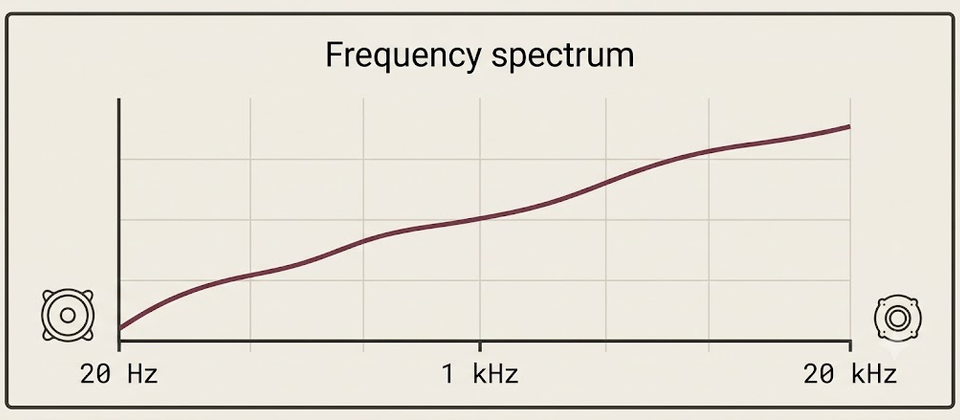
Play fixed sine tones or a logarithmic sweep from roughly 20 Hz to 20 kHz. Use this page to hear how your speakers or headphones behave across bass, midrange, and treble — not as a medical hearing test or calibrated lab measurement.
Start at low volume, especially on headphones. Raise level only after the tone is comfortable.
Frequency ranges in plain terms
- ~20–250 Hz — bass and upper bass. Small laptop speakers often roll off here.
- ~250 Hz–4 kHz — midrange; voices and most musical body live here.
- ~4–20 kHz — presence and “air.” Many adults hear less detail at the top end; silence at 16 kHz is not proof of a broken tweeter by itself.
Presets on the tool jump to common checkpoints (for example 60 Hz, 440 Hz, 1 kHz, 8 kHz). Sweeps move continuously so you can notice rattles or sudden dips.
Safe listening
- Begin quiet; increase gradually.
- Avoid long, loud high-frequency tones into earbuds.
- Stop if you hear harsh crackle — that is usually clipping or a stressed driver, not something to “push through.”
- Take breaks between long sweeps.
What rattles and dips may mean
- Rattle in a narrow band — loose panel, grille, or object vibrating. Lower volume; move loose items.
- Sudden quiet dip — room mode, EQ notch, or driver limit. Move seat/speaker; compare headphones.
- Harsh crackle when loud — clipping or overdriven amp/DAC gain. Reduce system and tool volume.
Room acoustics change what you hear at the listening seat. Compare the same tone on headphones before concluding a speaker is defective.
Silence at very low or high frequencies
- Deep bass missing on a phone or ultrabook is often a physical driver limit.
- Very high tones may be inaudible with age, ambient noise, or aggressive OS “enhancements.”
- Confirm the correct output device is selected, then compare another pair of headphones.
This page does not diagnose hearing health. If you are concerned about your hearing, use a proper clinical test.
When to switch to the bass test
If you only care about the low end, continue on the bass test (20–200 Hz focus and low sweep). Use this frequency page when you need mids, treble, or a full-range sweep.
Distortion checklist
- Lower every gain stage (OS, app, tool, amp).
- Disable loudness / bass boost EQ while testing.
- Retest on another device to separate content from hardware.
- If distortion tracks one channel only, run the left/right test.
Limits
Tones are generated locally in the browser. Results depend on your DAC, drivers, room, and ears. Treat findings as practical clues for setup and troubleshooting, not as a frequency-response certificate.
How to run a useful sweep
- Set tool volume low; set OS volume to a known comfortable media level.
- Sit in your normal listening position (or wear the headphones you care about).
- Start the log sweep once without changing anything — listen for rattles, dropouts, and harsh bands.
- Repeat at a slightly higher level only if the first pass was clean and quiet.
- Note any frequency region that rattles furniture or panels; fix the panel before raising volume again.
Presets vs continuous sweep
Use presets when you want a stable tone to compare devices (for example 440 Hz on laptop vs headphones). Use the sweep when you are hunting mechanical rattles or obvious holes. Jumping only between presets can miss a narrow buzz between checkpoints.
EQ and “enhancements”
Turn off loudness, bass boost, virtual surround, and manufacturer EQ while testing. Those processors change the tone shape and can look like speaker defects. After you finish, you can re-enable them for daily listening.
Linking to other tools
- Channel faults → left/right test
- Low-frequency only → bass test
- Harsh crackle or rattles → distortion troubleshooting
- No sound / routing → troubleshooting
Tone generator tips
A steady sine is easier to judge than music. Hold a mid preset (for example 440 Hz or 1 kHz) while you switch outputs — laptop speakers, USB headset, then Bluetooth — and note which device is quieter or harsher at the same tool volume. That comparison is more useful than chasing a perfect flat line in a living room.
If a tone generator sound “pumps” or flutters, look for OS enhancements, battery saver audio limits, or a Bluetooth codec switching under load. Disable enhancements, plug in wired headphones, and retest once before blaming the driver.
Hearing harsh crackle or rattles? See distortion troubleshooting. For low-frequency focus, continue to the bass test. Last reviewed: 21 July 2026.
Frequently asked questions
Last reviewed: 21 July 2026
Why can’t I hear 20 Hz or 16 kHz?
Small speakers often cannot reproduce deep bass, and hearing sensitivity drops with age and noise exposure at high frequencies. Ambient noise also masks quiet tones.
What does a frequency sweep show?
Sudden dips, rattles, or distortion can hint at driver limits, loose panels, or room modes. It does not prove a specific hardware fault by itself.
Is sine the only waveform?
Sine is the launch default because it is clear and predictable. Keep volume low when exploring extremes.
Can I use this as a hearing test?
No. This is a device listening check. It cannot diagnose hearing loss or replace a clinical audiogram.