Left Right Speaker Test
Check stereo channels independently. Confirm which side is playing, whether balance is even, and whether left/right are reversed.
Left / right / stereo test
Left should play only on the left, Right only on the right, and Both should sound centered and balanced.
Expected result: Left alone, Right alone, Both centered. If channels are swapped, check cable wiring or OS balance settings. Status: Ready.
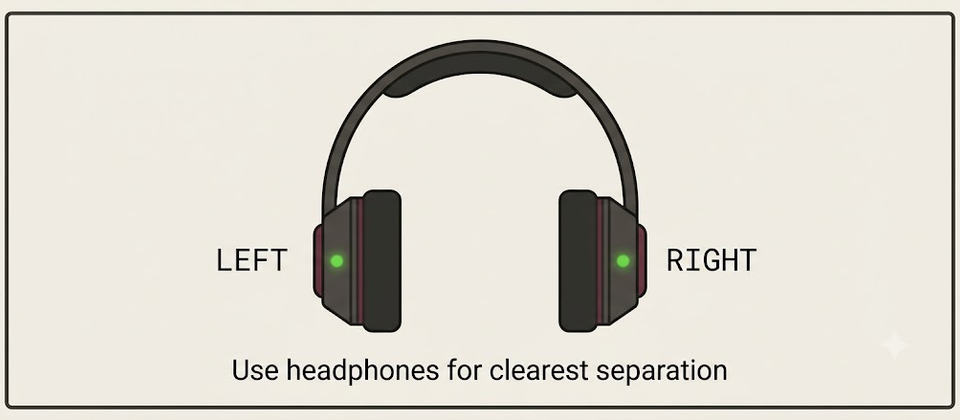
Headphones vs speakers
Use headphones for the clearest left/right separation. Many laptop and phone speakers sit close together or behave like mono, so channel problems are harder to hear on built-in speakers alone.
How to interpret results
| Control | What you should hear | If it sounds wrong |
|---|---|---|
| Left | Only left speaker/ear | Check mono mode, balance, or cable |
| Right | Only right speaker/ear | Reseat connectors; re-pair Bluetooth |
| Both | Centered, even loudness | Adjust balance or speaker placement |
Reversed channels checklist
- Left button plays in the right ear — often a swapped cable, receiver mapping, or Bluetooth profile. Swap sides physically, disable spatial audio, then re-pair.
- Both sides always play together — check for Mono audio in OS accessibility settings and turn it off.
- One earbud silent — clean contacts, re-pair the buds, and test on another device before assuming a dead driver.
- Confirm the correct output device in OS sound settings.
- Center the balance slider; disable mono audio.
- Reseat 3.5 mm / USB cables or re-pair Bluetooth.
- Retest with wired headphones if wireless is unreliable.
Left / right speaker test
Use the controls above to play a tone on the Left channel, the Right channel, or Both. The goal is simple: confirm which side is producing sound and whether the channels are swapped.
Headphones give the clearest answer. Laptop and phone speakers sit close together and sometimes sum toward mono, so channel faults are harder to hear on built-in speakers alone.
What each control should sound like
- Left — sound only in the left ear / left speaker. If wrong: check mono mode, balance, cable, or left driver.
- Right — sound only in the right ear / right speaker. If wrong: reseat connectors; re-pair Bluetooth; try another device.
- Both — centered image, roughly even loudness. If wrong: adjust balance or seating; compare with headphones.
One earbud silent
- Confirm the buds are charged and seated in the case contacts.
- Forget the device in Bluetooth settings and pair again.
- Test the same buds on a phone — if still one-sided, clean contacts or replace the bud.
- Compare with wired headphones on this page to rule out the computer’s output.
Left and right reversed
If the Left button plays in your right ear (or the reverse):
- Swap the physical left/right buds if they are marked L/R.
- Disable spatial audio / “3D” headphone effects that remapped channels.
- Re-pair Bluetooth; some profiles cache a bad channel map.
- On wired gear, try another cable or jack — tip/ring wiring can be swapped in adapters.
See also reversed channels.
Mono mode and balance
- Mono audio (accessibility setting) forces both channels into both ears. Left and Right will never isolate until Mono is off.
- A balance slider hard-left or hard-right can silence one side even when drivers are fine. Center it, then retest.
- Some laptops “PC speaker” enhancements downmix stereo; bypass enhancements in the sound control panel if channels will not separate.
Headphones vs laptop speakers
- Over-ear / in-ear headphones — clearest Left vs Right isolation.
- USB / 3.5 mm headset — same, if the OS is not in mono.
- Laptop / phone speakers — weaker stereo image; use only as a rough check.
- Soundbar / Bluetooth speaker — often downmixed; trust headphones for channel diagnosis.
Bluetooth pairing tips
- Disconnect other devices that might steal the headset.
- Set the OS default output to the headset before pressing Left/Right.
- If channels flip after every reconnect, update headset firmware or use a wired fallback for channel checks.
Cables and connectors
- Fully seat 3.5 mm plugs (partial insertion often kills one channel).
- Avoid cheap TRRS adapters when testing stereo; try a known-good cable.
- USB headsets: try another port; some docks remap audio oddly.
After this test
- Still one-sided after Mono off and balance centered → one-sided checklist.
- Need a full silent-system path → troubleshooting.
- Back to a short stereo sequence → quick test.
Quick isolation workflow
- Play Left, then Right, then Both and write down what you hear (left only / right only / both / silence / swapped).
- Switch to a known-good wired headset and repeat — if the fault disappears, focus on the previous device (buds, Bluetooth, cable).
- If the fault follows the computer across every headset, fix OS mono/balance/output before replacing hardware.
- If only one app fails while this page is correct, fix that app’s speaker setting — do not replace headphones yet.
Common false alarms
- Spatial audio / Windows Sonic / proprietary “3D” modes can widen or scramble the image so Left/Right feel wrong even when wiring is fine. Disable them for channel checks.
- Browser autoplay policies rarely block a user-started Play click; if Play does nothing, refresh once and confirm the tab is not discarded in the background.
- Exclusive mode on Windows shared-mode devices can lock an output to another app. Close the other app or disable exclusive mode on the playback device, then retest.
Soundbars and single-cabinet Bluetooth speakers
Many soundbars and portable Bluetooth speakers downmix to a single enclosure. You may hear Left and Right as “from the box” with little separation. That does not mean the test failed — use headphones when you need a true stereo diagnosis, then return to the soundbar for a simple “is anything playing?” check.
Still stuck? See one-sided audio troubleshooting or reversed channels, or return to the quick speaker test.
Last reviewed: 21 July 2026
Frequently asked questions
Last reviewed: 21 July 2026
What should Left and Right sound like?
Left should appear only on the left ear/speaker, Right only on the right, and Both should sound centered with similar loudness on each side.
My channels are reversed. What now?
Check cable wiring, receiver channel assignments, and OS balance or spatial audio settings. On some Bluetooth devices, channel mapping can also be wrong in the firmware profile.
Both sides play when I choose Left.
Your output may be downmixed to mono, or you may be listening on a single speaker. Try stereo headphones and disable mono audio accessibility settings.
Laptop speakers don’t separate left and right clearly.
That is common — many laptop speakers are close together or effectively mono. Use headphones for a reliable channel check.
Bluetooth earbuds only play one side.
Re-pair the buds, clean the charging contacts, and check balance/mono settings. Then re-run Left and Right here to confirm.