Speakers not working
Practical checks for silent, one-sided, distorted, or bass-light audio. Avoid risky repairs — these steps stay at settings, cables, and safe listening tests.
Start here
First run the quick speaker test. If you hear nothing, follow No sound at all. If only one side works, use the left/right test then one-sided checks. If sound works here but not in Zoom, Teams, or Discord, jump to app-only issues. For weak low end, open the bass test and weak bass.
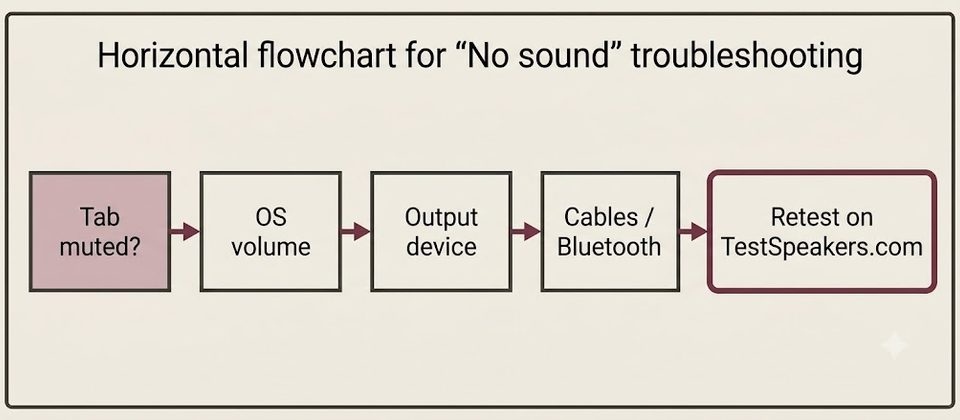
Speakers not working: practical checks
Work top-down: software mute and wrong output first, cables and hardware last. Use the quick speaker test as your baseline — if this site plays, your device can produce sound and the problem is narrower than “everything is dead.”
Start with a quick test
- Open the homepage quick test.
- Unmute the tab and raise system volume.
- Select the correct output device, then press Play.
- Note whether you hear Left, Right, Both, or silence.
Branch from that result using the sections below (or the symptom list further down this page).
No sound at all
- Unmute the browser tab.
- Confirm OS volume and per-app mixers.
- Change output device away from a disconnected Bluetooth or HDMI sink.
- Re-pair Bluetooth or switch to wired headphones.
- Reseat cables; power external speakers / soundbar; pick the correct input.
- Update or re-enable the audio device in the OS.
Full ordered list: no sound.
One-sided audio
- Run the left/right test.
- Turn off Mono audio in accessibility settings.
- Center the balance slider.
- Reseat the headphone plug fully (partial insert kills one channel).
- Try another cable or a wired pair to separate buds vs computer.
Details: one-sided audio.
Bluetooth delay or disconnects
- Move closer; clear line of sight; reduce 2.4 GHz interference.
- Forget and re-pair; disable other connected phones/tablets.
- Prefer wired for latency-sensitive calls if the headset stays laggy.
- Update Bluetooth drivers / headset firmware when dropouts persist.
Details: Bluetooth.
Zoom, Teams, and Discord only
When TestSpeakers.com works but a call app does not:
- Set that app’s speaker output to the same device that worked here.
- Leave and rejoin the meeting after changing devices.
- Check OS privacy permissions if the app’s device list is empty.
- Update the app; as a last step, clear its audio device cache or reinstall.
Details: app-only issues.
Frequency and bass follow-ups
- Harsh distortion or rattles on music → frequency generator sweep at low volume.
- Weak low end / sub questions → bass test and weak bass.
Safety
Keep levels moderate. Do not chase “full volume” to prove a point — you can clip amplifiers and fatigue your ears. Prefer short tones and sweeps.
Limits
These guides cover settings, routing, and safe listening checks. They are not repair manuals for mains-powered amplifiers or sealed speaker surgery. If hardware is physically damaged, stop and use a qualified technician.
Decision path (short)
- Total silence → No sound
- One side only → Left/right test then one-sided
- Works here, fails in a call app → App-only
- Plays but drops on Bluetooth → Bluetooth
- Plays but bass is missing → Bass test then weak bass
- Plays but sounds harsh / rattles → Frequency generator then distortion
OS quick references
Windows: Sound settings → output device; Volume mixer for per-app levels; optional Playing Audio troubleshooter.
macOS: System Settings → Sound → Output; check Control Center for a hijacked Bluetooth route after meetings.
Chrome OS / Linux: Confirm the correct sink in system sound; browsers follow the OS default unless an extension overrides it.
After you fix the route
Retest on this site, then in the app you care about. If both work, you are done — no need to replace hardware. If only hardware stays dead across every device and cable, then consider repair or replacement.
No sound at all
Work through these checks in order before assuming hardware failure.
- Confirm this browser tab is not muted and the tool volume slider is up.
- Raise system volume and disable system mute.
- Select the intended output device in Windows, macOS, iOS, or Android sound settings.
- Reconnect cables, USB audio devices, or Bluetooth pairing.
- Test with another app or another pair of headphones.
- Restart the browser, then the device if needed.
Only the left or right side works
Channel problems are often balance, mono mode, or a bad cable.
- Run the left/right speaker test with known-good stereo headphones.
- Check OS balance is centered and mono audio is off.
- Swap left/right cables or try another cable.
- Re-pair Bluetooth and disable any 'audio sharing' modes.
Left and right are reversed
Reversal is usually wiring, channel mapping, or a spatial audio quirk.
- Verify speaker cable polarity and receiver channel assignments.
- Disable spatial/3D audio temporarily.
- Test another player to see if the swap is system-wide.
Sound is quiet or unbalanced
Quiet output is often the wrong device, limiter, or uneven balance.
- Compare tool volume vs device volume; raise gradually.
- Disable enhancements, loudness EQ, or battery-saver audio limits.
- Check that both speakers are powered and set to similar gain.
Sound crackles, buzzes, or distorts
Distortion can be clipping, interference, or a failing driver.
- Lower volume; clipping often disappears when levels drop.
- Move USB/power cables away from audio cables.
- Try a frequency sweep to hear whether a narrow band rattles.
- Test another device to isolate the source.
Bluetooth audio is delayed or disconnects
Wireless links add latency and can drop under interference. Confirm the browser path still works before blaming the site.
- Move closer to the source and reduce 2.4 GHz congestion (busy Wi‑Fi, microwaves) if possible.
- Forget and re-pair the device; update OS Bluetooth drivers on Windows.
- Disable battery-saver modes that throttle Bluetooth audio.
- Compare with a wired headset or speakers to confirm the content path is fine.
- If only one earbud works, run the left/right test after re-pairing.
Speakers work here but not in another app
Zoom, Teams, Discord, games, and browsers often keep their own device picker and mute state.
- Open the app’s audio/output settings and select the same device that works here.
- Unmute the app and any in-call or push-to-talk mute toggles.
- Quit other apps that may exclusively lock the audio device.
- On Windows, check App volume and device preferences under Sound settings.
- Restart the meeting app after changing the default system output.
Bass is missing or weak
Missing bass may be speaker size, crossover, placement, or balance — not always a broken driver.
- Run bass presets and compare headphones vs speakers.
- Check subwoofer power, cable, and crossover settings (often 80–120 Hz).
- Move the listening seat or sub — room nulls can cancel bass in one spot.
- Confirm left and right both play with the left/right test; uneven channels can thin the bass image.
Last reviewed: 21 July 2026
Frequently asked questions
Last reviewed: 21 July 2026
Sound works here but not in Zoom or Teams.
The meeting app may be using a different output device or is muted internally. Open that app’s audio settings and match the device that works on this site.
Only one earbud works.
Run the left/right test, then reseat the cable or re-pair Bluetooth. Also check mono mode and balance sliders in accessibility settings.
Discord or a game has no sound but this site works.
Check that app’s output device and voice settings. Games sometimes bind to a previous headset. Confirm the system default, then restart the app.